A New Brain for an Old Echo Dot
A 2016 Echo Dot from a drawer, unlocked over one USB cable and turned into a private Home Assistant voice assistant that keeps what it hears inside the house.
Solo — the hardware and the run, paired with Claude Code; the unlock and the Linux firmware are open-source work by bboe and HuskerMinion
- Unlock time
- 7 min 44 s
- Models tested
- 13
- Local brain: gpt-oss 20B
- 85% · 0.44 s
- Wake words on the device
- 12
01 / problem
The problem
There are millions of Echo Dots sitting in drawers. Each one is a well-built far-field microphone array, a decent speaker and a light ring, and each one only works as a front end for Amazon's cloud.
I wanted the hardware without the middleman: a voice assistant for Home Assistant that hears its wake word on the device and sends what I say nowhere but my own network. Not an anti-Amazon project; a use-what-you-have one, and a question of where your data goes.
02 / build
What I built
- Unlocked and rooted a 2016 Echo Dot (2nd gen) with firebreak, which wraps R0rt1z2's amonet exploit for the Dot's MediaTek chip into one command. One USB cable, a button gesture, 7 minutes 44 seconds. No soldering, no opening the case.
- Replaced Fire OS with TECHO5, a small Alpine Linux that turns the Dot into an ESPHome voice satellite. A dry run backed up all 13 boot partitions first; the real install came up healthy on the first try.
- Joined it to Home Assistant as a voice satellite: on-device wake word (12 to choose from), and a fully local pipeline behind it: Whisper for speech-to-text, a local LLM through Ollama as the brain, Piper for the reply voice.
- Picked its brain with a test, not a hunch. Claude Code built a harness that replays 18 real requests, twice each, with Home Assistant's own prompt and 29 tools, answering the tools with recordings so nothing in the house moves. 13 models ran through Ollama. gpt-oss 20B won the local slot: 85% in 0.44 seconds.
- Gave it music and the web. Music Assistant plays Spotify on the Dot and the other speakers, with playlist tools Marvin can use. A private SearXNG answers news and fact questions, so the model searches instead of guessing.
- Put a checker in the middle. A small proxy between Home Assistant and Ollama reviews every answer before it's spoken, keeps a week of memory, and switches to the same model on Ollama's cloud when I need the GPU for other work.
- Wrote it up as a guide anyone with a Dot in a drawer can follow, below, with drawn diagrams and a Short for the channel.
03 / signal
What it shows
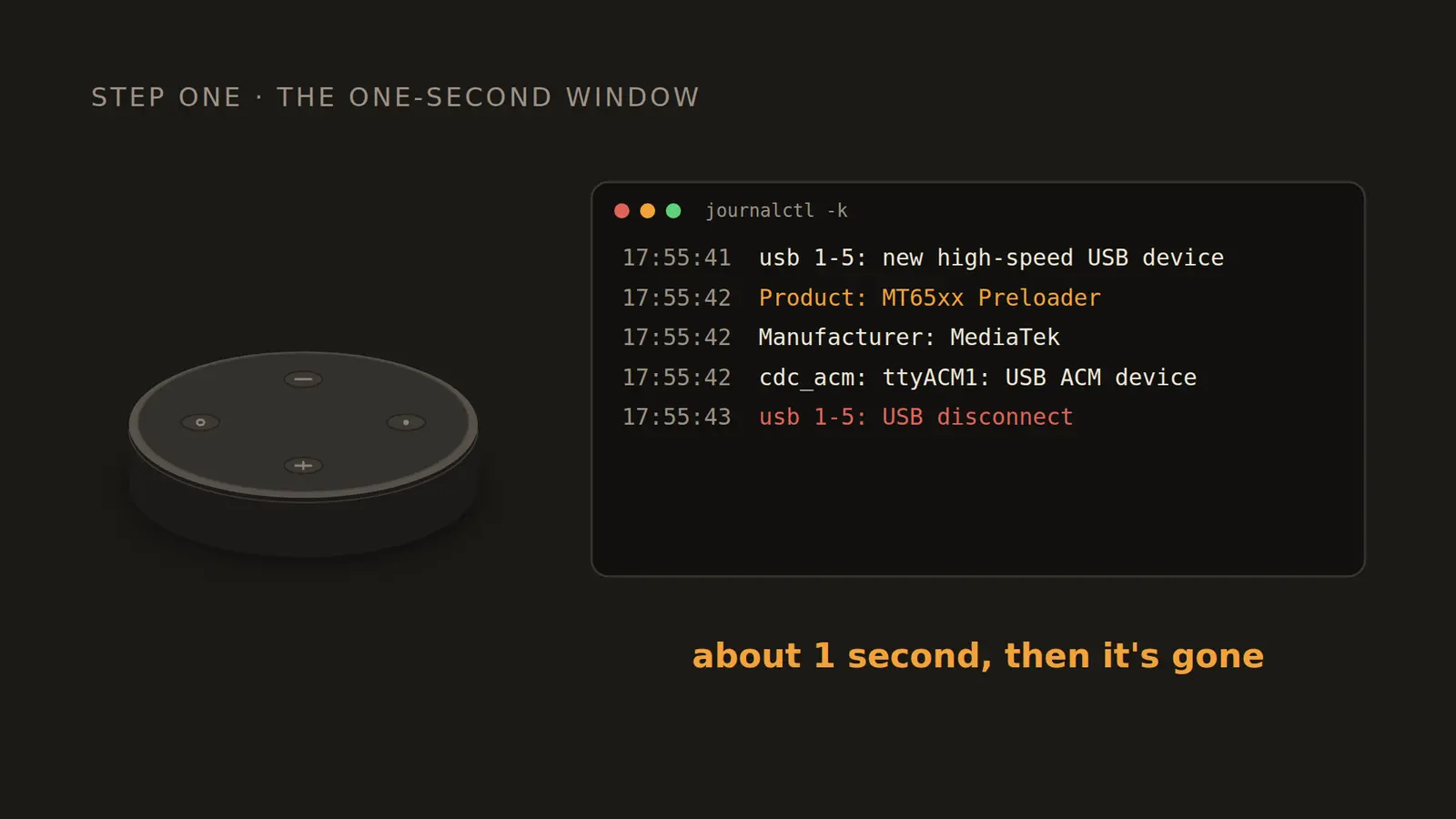
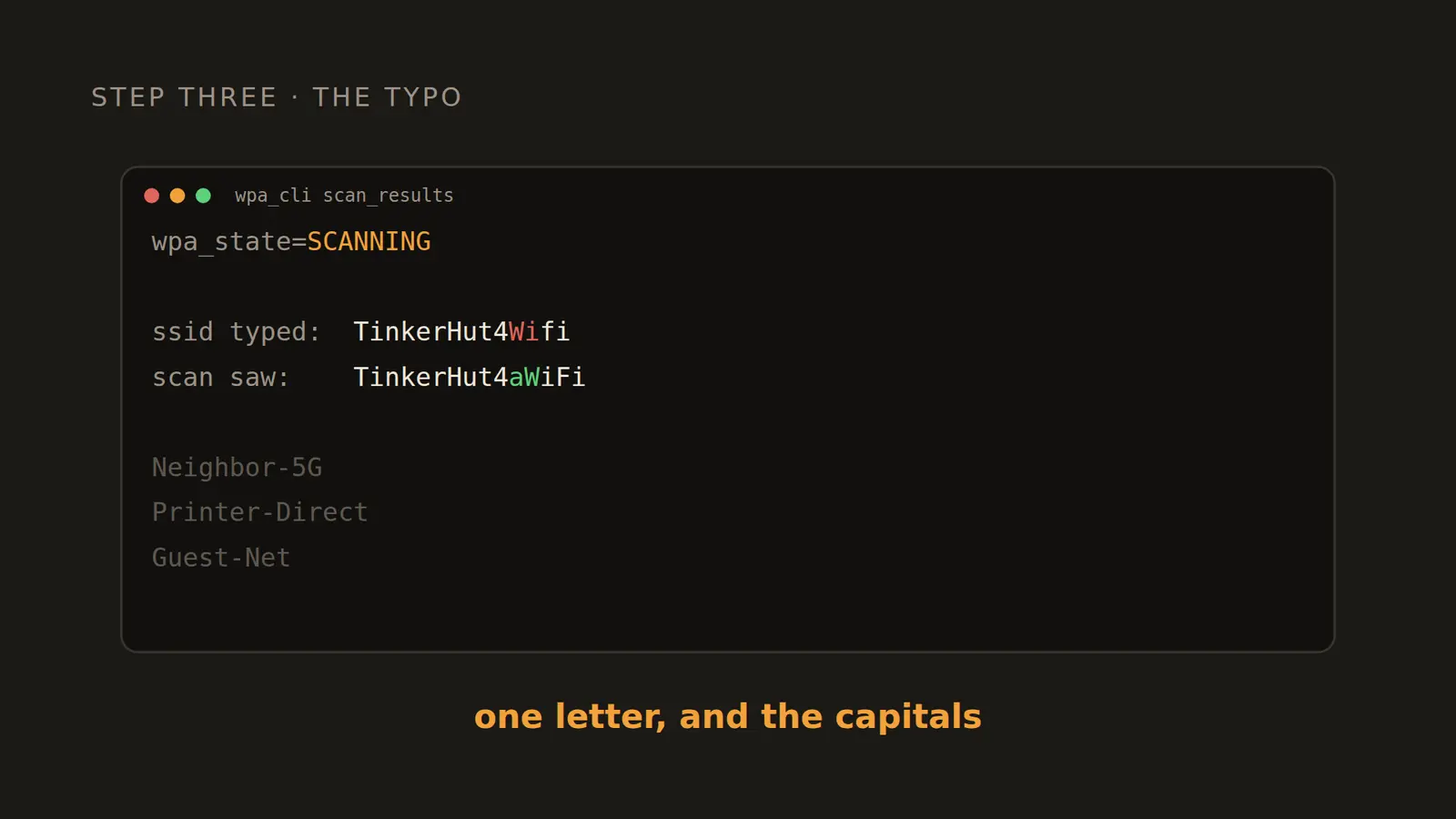
Mostly, it shows the value of reading the hardware instead of the tool. A stock Dot is nearly invisible over USB: it appears as a MediaTek preloader for about one second, then boots and goes silent. The kernel log told us the cable carried data before any tool did, and the button gesture into fastboot did the rest. After the install, the Dot reported healthy but offline; its own USB console showed it stuck scanning, and the scan listed the real network name, one letter and two capitals off from what was typed.
It's also an honest picture of how I work now. The unlock and the firmware are other people's excellent open-source work; I supplied the hardware, the hands and the judgement, and Claude Code and I drove the tools, read the logs and wrote the guide together.
Part two was the brain. The scores ran from 53% to 97%, and the best model took 8 seconds an answer, too slow to talk to. The failures were more useful than the scores: a model that said "playing" without calling the tool, one that answered in Thai with a made-up news story, and every model searching the mood words of "something for cooking dinner" literally, which is a tool-design gap, not a model one. So the pick is fast and honest about its tools, and a checker catches what slips through anyway.
Gallery 1 / 2
The Short. AI narration voice and AI-generated drawer shots; the diagrams are drawn in code.
06 / deep dive
Do it yourself: an old Echo Dot as a private assistant
You need a 2nd-gen Echo Dot, a micro-USB data cable, two free tools and an evening. Steps 1 to 4 come from a real run on 11 November 2026, on Ubuntu. Steps 5 to 7 are the setup running in our house now: the brain, music and web search, with model scores from the test on 12 November.
There's a small chance of soft-bricking the Dot. Recovery is usually possible, but treat this as an experiment on a device you're willing to lose.
01
Which Echo do you have?
The model number is on the bottom of the Dot.
| Model | Status (Nov 2026) | What it takes |
|---|---|---|
| Echo Dot 2nd gen (2016), RS03QR | Works; this guide walks through it | A micro-USB data cable and a button press |
| Echo 2nd gen (2017) | Supported by firebreak and TECHO5 (tested on one unit so far) | USB and a button gesture; see the TECHO5 docs |
| Echo Dot 3rd gen, 2018 board | Supported by firebreak and TECHO5 (tested on one unit so far) | USB and a button gesture; some older guides solder to test pads instead |
| Echo Dot 3rd gen 2019 and later, Dot with clock | Not compatible | — |
| Echo Dot 4th/5th gen, Echo Pop | No known way in | — |
What you give up: Alexa's cloud services, such as skills and shopping. Those only ever lived in Amazon's cloud.
02
Before you start
- Keep the Dot offline until it's unlocked. If it reaches Amazon it can update itself to a build the unlock doesn't support. A Dot that has sat unused in a drawer is ideal.
- Use a cable that carries data, plugged into a port on the computer itself, not a hub. A charge-only cable gives power and nothing else.
- Install the tools:
adb,fastboot,git, Python 3 and uv. You also need Home Assistant on your network.
sudo apt install adb fastboot git libusb-1.0-0
curl -LsSf https://astral.sh/uv/install.sh | sh
On Linux, add the udev rules from the firebreak README so your user can talk to the Dot in each of its USB modes, then reload udev and log out and back in. Stop ModemManager while you work: it grabs new serial devices and can steal the Dot's brief USB window.
sudo systemctl stop ModemManager
03
Step 1: Unlock and root with firebreak
Start firebreak first, with the Dot unplugged. It waits until it sees an Echo.
uvx firebreak@latest --verbose unlock
Know about the one-second window. When a stock Dot powers up over USB, it shows up as a MediaTek preloader for about one second, then boots into Fire OS and goes quiet on USB. The Dot isn't broken; the computer sees it for that one second. Watch it with journalctl -k -f: seeing the preloader appear confirms your cable carries data.
04
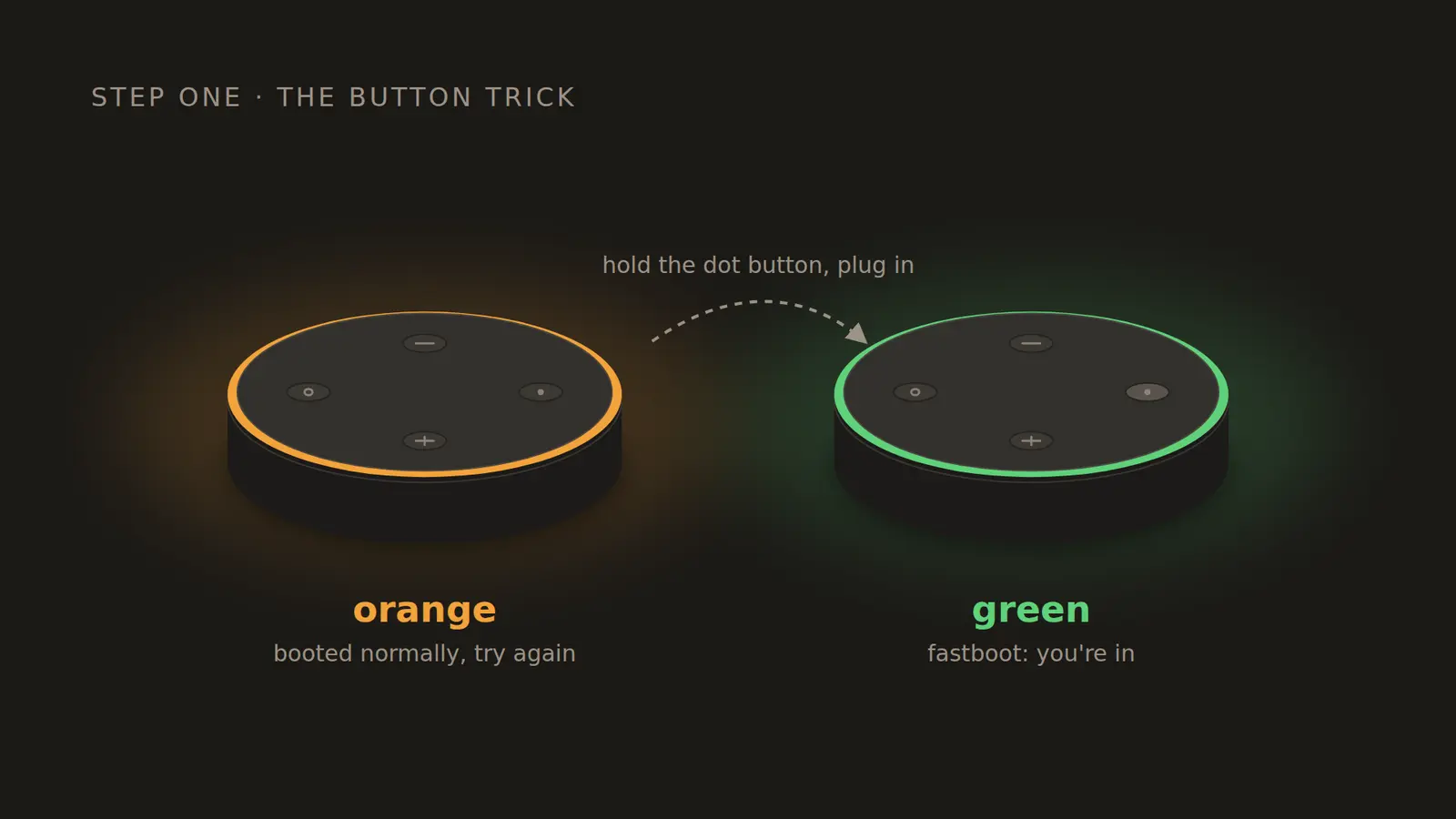
The button gesture into fastboot
- Unplug the Dot.
- Press and hold the action button (the one with a dot).
- While holding it, plug the cable back in.
- Let go when the light ring turns green.
| Ring | Meaning |
|---|---|
| Green | Fastboot. firebreak takes it from here. |
| Orange | It booted normally into Alexa's setup mode. Harmless: unplug and try again. |
| Solid blue | Usually a charge-only cable or a bad port. Try another cable, then another port. |
firebreak unlocks the bootloader, roots the Fire OS 6 already on the Dot (your setup is kept), and blocks Amazon's update servers on both system slots. Ours took 7 minutes 44 seconds and ended with:
The Echo Dot (2nd Generation) is rooted: Fire OS 6574.1 (NS65741/8149), with root adb.
Back up ~/.android/adbkey. The rooted Dot now trusts only that key.
05
Step 2: Install TECHO5 Linux
TECHO5 replaces Fire OS with a small Alpine Linux that turns the Dot into an ESPHome voice satellite. It needs the Dot on Fire OS 6574.1 with root adb, which is exactly where firebreak leaves it.
git clone https://github.com/HuskerMinion/techo5-dot
cd techo5-dot
python3 tools/install-dot.py --dry-run
Dry run first. It checks the device, backs up every partition the Dot boots from (13 of them, each verified by md5), downloads and checks the signed release, and builds this Dot's boot image. It writes nothing to the Dot. It asks for your Wi-Fi network name, the password (typed without echo) and a name for the Dot in Home Assistant, and saves a Home Assistant encryption key in backups/<serial>/home-assistant.key.
Then run the real install, pinned to the release the dry run checked:
python3 tools/install-dot.py --release dot-v1.0.61 --name "Kitchen" --wifi "YourNetworkName"
It writes the boot image to the recovery partition and reads it back, unpacks the Linux root filesystem into slot A, sets the Dot to boot Linux, reboots, and waits on the Dot's USB console for a healthy boot. Ours came up healthy on the first try.
Keep backups/. It's your way back to stock Fire OS, and it holds the Home Assistant key.
Safety nets: Fire OS and TWRP stay on the device. After five bad boots, the Dot drops into a rescue mode with a USB console and SSH. Updates are signed, install to a spare slot, and roll back on their own if they don't come up healthy.
06
Step 3: Get it on Wi-Fi
If the ring flashes yellow, the Dot is running TECHO5 and healthy, but it isn't on Wi-Fi yet.
Check the network name before you blame the password. Wi-Fi names are case-sensitive. Ours had a one-letter typo: the Dot's own scan, read over its USB console, showed it stuck on wpa_state=SCANNING and listed the real name.
Re-send the network over USB; there's no need to reinstall:
python3 tools/set-wifi.py --serial <your-dot-serial> --ssid "ExactNetworkName"
It asks for the password again and reports Joined: … is at <address> once the Dot is on the network. Your router also needs to allow WPA2: a WPA3-only network won't work. As a fallback, hold the mute button for 5 seconds to send the Dot its network over Bluetooth (Improv).
07
Step 4: Add it to Home Assistant
- Home Assistant should discover the Dot as an ESPHome device under Settings → Devices & services. If it doesn't, add the ESPHome integration by hand with the Dot's IP address and port
6053. - When it asks for the encryption key, paste the contents of
backups/<serial>/home-assistant.key. - Under Settings → Voice assistants, build or pick an Assist pipeline:
- Speech-to-text: for example Whisper. Fast on a GPU machine; on small hardware, Speech-to-Phrase is quicker for fixed commands.
- Conversation agent: for example a local LLM through the Ollama integration.
- Text-to-speech: for example Piper.
- On the Dot's device page, choose its pipeline and its wake word: Okay Nabu, Hey Jarvis, Hey Mycroft, Alexa, Computer, Jarvis, Hey Friday, GLaDOS, HAL, Terminator, Marvin or Home Assistant.
Say the wake word and ask it something.
Beyond voice, the Dot can be a multiroom speaker through Music Assistant, an AirPlay or Spotify Connect speaker, a Bluetooth speaker, and a Bluetooth proxy for Home Assistant. The light ring can show wake, listening, thinking, replying and error, and it can pulse with music.
08
Step 5: Pick a brain
The Dot only listens and speaks; the conversation agent decides what to do. A bad one plays the wrong song, claims it did something it didn't, or makes up the news. So rather than pick on reputation, we tested.
The test. 18 real requests from Marvin's log (music, news and facts, the house, small talk), each run twice. Every model got Home Assistant's real system prompt and all 29 of its tools, and the harness answered tool calls with recordings, so nothing in the house moved. A run counted as right when the model called the right tool and its spoken answer passed the checks. One request ("answer in Thai") was dropped: every model obeys it, so the language rule is enforced live instead.
| Model (Ollama) | Where | Right of 34 | Median answer |
|---|---|---|---|
| nemotron-3-super | cloud | 33 | 7.89 s |
| gpt-oss 20B | cloud | 32 | 1.40 s |
| kimi-k2.6 | cloud | 32 | 3.74 s |
| gemma4 31B | cloud | 30 | 0.82 s |
| gpt-oss 20B | local, 13 GB | 29 | 0.44 s |
| glm-4.7-flash | local, 19 GB | 28 | 0.26 s |
| Qwen 2.5 14B (our old setup) | local, 9 GB | 28 | 0.44 s |
| deepseek-v4-pro | cloud | 27 | 1.69 s |
| minimax-m3 | cloud | 27 | 3.08 s |
| Qwen3 14B | local, 9.3 GB | 26 | 0.44 s |
| gpt-oss 120B | cloud | 23 | 0.93 s |
| Llama 3.1 8B | local, 4.9 GB | 21 | 0.84 s |
| glm-5.3 | cloud | 18 | 1.40 s |
The pick: gpt-oss 20B, on the local GPU. 29 of 34 at 0.44 seconds, and it uses its tools instead of describing them. The old model, Qwen 2.5 14B, would say "playing" with no tool call, which is why we switched. When I need the GPU for other work, its cloud twin (32 of 34, 1.4 s) takes over.
Which brain for your hardware:
| You have | Use | What to expect |
|---|---|---|
| A GPU with 16 GB or more | gpt-oss 20B | The best local balance of right and fast |
| About 10 GB | Qwen3 14B | 26 of 34, same speed |
| About 6 GB | Llama 3.1 8B | Every home-control test right, all news searches right, weak at small talk (it calls tools when it should just chat) |
| No GPU, or no AI wanted | Home Assistant's built-in commands | Lights, timers and music controls in about 0.1 s; no open-ended questions |
Our settings. In Home Assistant's Ollama integration: model gpt-oss:20b, context window 64K tokens, thinking off, 20 messages of history, and control of Home Assistant on (the Assist API). We run three pipelines and switch the Dot between them:
- Local: Whisper (turbo) on the GPU, gpt-oss 20B, Piper (
en_US-lessac-medium). "Prefer handling commands locally" is on, so fixed commands skip the model. - Quick: Home Assistant's built-in commands only, with Whisper (
base.en) on the CPU. - Work: Whisper on the CPU, and the same model on Ollama's cloud, so the GPU is free.
A checker anyway. Claude Code and I built a small proxy that sits where Home Assistant expects Ollama. It passes everything through, but reads each final answer before it's spoken: wrong language, empty or runaway answers, news quoted without a search, a news question answered without searching. On a miss it retries once with a correction, then falls back to a plain line. It also keeps a week of notes as memory, has a guest mode that reads and keeps nothing, and forgets on request.
What leaves the house: audio never does. Text leaves only for web searches and, in work mode, answers from the cloud model.
09
Step 6: Music with Music Assistant
Music Assistant is what makes "play something" work across speakers. It runs beside Home Assistant, pulls from your music services, and plays to almost anything: TECHO5 Dots show up as Sendspin players, Google speakers as Chromecast, and you can group speakers to play in sync.
- Run the server. We use the container
ghcr.io/music-assistant/serverwith host networking, so it can discover speakers. - Add a music provider in Music Assistant's settings. We use Spotify, which needs a Premium account. Add the player providers for your speakers too (Sendspin, Chromecast, AirPlay, DLNA), and a sync group if you want "everywhere".
- Add the Music Assistant integration in Home Assistant. Each player becomes a
media_player, and you get themusic_assistant.play_mediaaction, which takes a name ("Bon Iver", a song, a playlist) rather than an exact ID.
Give the model a play tool. Expose a script to Assist and the model can call it. Ours is a cleaned-up version of this:
play_music:
  alias: Play music
  description: >-
    Start music through Music Assistant on the Dot (the default) or another speaker.
    Use it only to start music: a song, artist, album, playlist or station. For a mood
    or genre, pick a fitting real artist and pass that. Call it once per request.
  mode: single
  fields:
    query:
      description: Song, artist, album, playlist or station name
      required: true
      selector:
        text:
  sequence:
    - action: music_assistant.play_media
      target:
        entity_id: media_player.your_dot
      data:
        media_id: "{{ query }}"
The description is the part that matters: it's the instructions the model reads. "Pick a fitting real artist" came straight out of the test, where every model searched the words "cooking dinner" instead.
Keep the quick controls out of the model. Pause, skip, resume and "what's playing" don't need an LLM. Custom sentences in config/custom_sentences/en/ map them to an intent script that acts on whichever speaker is playing, so they answer in about a tenth of a second. Anything starting with "play" goes to the model, which can ask when a request is unclear.
Beyond play. We also gave Marvin tools to list the household's playlists, say what's on one, add or remove the song that's playing, and build a new playlist on a theme. The builder grounds itself with a web search, fills out from Music Assistant's similar tracks, and saves to Music Assistant only, until someone asks in words to save it to Spotify.
10
Step 7: Web search with SearXNG
A local model knows nothing after its training date, and it will happily guess. SearXNG is a self-hosted metasearch engine: it asks the big engines for you and returns the results without tracking, and its JSON output is easy for Home Assistant to read.
1. Run it, with JSON turned on. In SearXNG's settings.yml:
use_default_settings: true
server:
  limiter: false      # it's only answering your own house
search:
  formats:
    - html
    - json            # off by default; Home Assistant needs it
docker run -d --name searxng --restart unless-stopped \
  -p 8888:8080 -v ./searxng:/etc/searxng searxng/searxng:latest
2. Let Home Assistant call it, in configuration.yaml:
rest_command:
  searxng_search:
    url: "http://127.0.0.1:8888/search?q={{ query | urlencode }}&format=json&categories={{ category | default('general') }}&language=en-US"
    method: GET
    timeout: 20
3. Wrap it in a script the model can use, and expose the script to Assist:
web_search:
  alias: Search the web
  description: >-
    Search the web through a private SearXNG. Use it for news, current events,
    sports results, prices and facts you are not sure of; never guess at current
    information. Answer in at most three short sentences, name the outlet for each
    result, and never read out URLs. The query leaves the house, so never put
    personal details in it.
  mode: parallel
  fields:
    query:
      description: Short search query, like a person would type
      required: true
      selector:
        text:
  sequence:
    - action: rest_command.searxng_search
      data:
        query: "{{ query }}"
      response_variable: r
    - variables:
        found: >-
          {% set ns = namespace(out=[]) %}
          {% for x in (r.content.results if r.status == 200 else [])[:4] %}
          {% set ns.out = ns.out + [{'title': x.title, 'snippet': (x.content or '')[:260]}] %}
          {% endfor %}{{ {'query': query, 'results': ns.out} }}
    - stop: done
      response_variable: found
Four short results keep the answer fast and the context small. Ours also has a news mode that adds SearXNG's news category, limited to the past week. The search query is the one thing that leaves the house here, which is why the description tells the model never to put personal details in it. The checker from Step 5 catches a news answer given without a search.
11
If something goes wrong
| Symptom | What it means | Fix |
|---|---|---|
| firebreak waits forever | A stock Dot never shows up as adb | Do the button gesture |
| Ring orange | The Dot booted normally | Unplug and retry the gesture |
| Ring stays solid blue | The cable or port isn't carrying data | Another cable, or a port on the computer itself |
| Preloader appears and vanishes in the kernel log | Normal; confirms the cable carries data | Nothing to fix |
| Ring flashes yellow after the install | Healthy, but no Wi-Fi | Check the SSID spelling, then run set-wifi.py |
| Dot stuck after a failed unlock step | Soft-bricked | See the XDA recovery thread for the 2nd-gen Dot |
12
Credits
This is other people's excellent work, put together in one place:
- firebreak by bboe, built on R0rt1z2's amonet
- TECHO5 by HuskerMinion
- Home Assistant and its Assist voice pipeline
- Ollama, Whisper and Piper for the brain, ears and voice
- Music Assistant and SearXNG
- Related projects: echo-dot-assist (Dot 3 2018, Dot 2, Echo 2) and EchoMuse
Go check your drawers.